
ColoCrossing recently brought back one of its VPS deals, so I picked up a new 3 vCPU / 4 GB RAM server to replace an older 2 vCPU / 2.5 GB RackNerd VPS that was about to expire. The price was nearly identical, so the upgrade seemed like an easy decision.
Normally, setting up a new VPS is a ten-minute job. You receive the IP address, connect through SSH, deploy your applications, and move on.
This time was different.
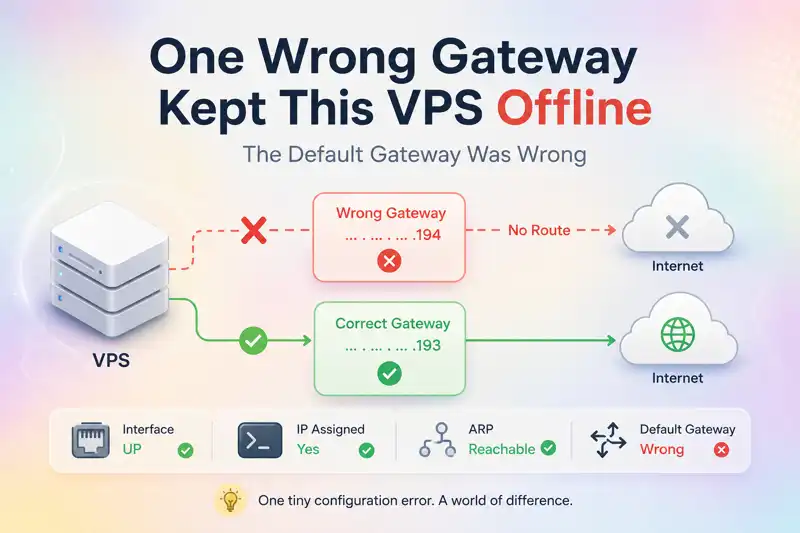
As soon as the VPS was provisioned, I noticed something wasn’t right. The assigned IP wouldn’t respond to ping requests, and SSH connections timed out completely. To rule out local network issues, I tested the server using several global ping monitoring services. Every result came back the same: 100% packet loss.
Since the server was located in a U.S. datacenter and wasn’t reachable from anywhere, I started to suspect a network configuration issue rather than a routing problem between regions.
Starting With the VNC Console
With SSH unavailable, the only option was to use the VNC console provided in the control panel.
The good news was that the operating system had booted successfully. I could reach the login screen and access the shell without any problems. The first thing I wanted to verify was whether the VPS had actually received its public IP address.
My initial instinct was to run:
ip addrInstead, I got:
ip: command not foundApparently the image was stripped down enough that iproute2 wasn’t installed.
So I used a simpler command:
hostname -IThe system returned the correct public IP. That immediately confirmed two things:
- The network interface was up.
- The IP address had been assigned correctly.
At least the basics were working.
The VPS Couldn’t Reach the Internet Either
Next, I wanted to see whether the server itself had outbound connectivity. A quick test:
ping -c 4 8.8.8.8Result:
100% packet lossThis was an important clue. At that point, the issue was no longer “I can’t reach the server.” The server couldn’t reach anything else either.
If a VPS can’t communicate with Google’s public DNS server, then SSH settings, DNS configuration, and most firewall theories can move much lower on the troubleshooting list.
To see where traffic was getting stuck, I ran:
tracepath 8.8.8.8The output looked roughly like this:
1: [LOCALHOST]
1: no reply
2: no reply
3: no reply
...
Not even the first hop responded. That strongly suggested a routing problem.
Checking the Routing Table
The next step was to inspect the current routes:
ip routeThe VPS showed:
default via 204.44.74.194 dev eth0 onlink
204.44.74.192/26 dev eth0 proto kernel scope link src 204.44.74.199
The configured default gateway was:
204.44.74.194At first glance, everything looked normal. Still, something wasn’t adding up.
To verify that Layer 2 connectivity was working, I checked the ARP neighbor table:
ip neighThe result:
204.44.74.194 dev eth0 lladdr xx:xx:xx:xx:xx:xx REACHABLEThis told me:
- The gateway existed.
- ARP resolution was working.
- The VPS could communicate on the local network segment.
Yet no traffic was leaving the server.
The Clue That Solved It
The VPS was assigned an address within:
204.44.74.192/26From experience, many VPS providers use the first usable address in a subnet as the default gateway.
That made me wonder whether the gateway should actually be .193 rather than .194.
So I changed the route manually:
ip route del default via 204.44.74.194

ip route add default via 204.44.74.193 dev eth0 onlink
Then I tested connectivity again:
ping 8.8.8.8Immediately, packets started flowing. A quick verification:
curl ifconfig.meThe server returned its public IP address successfully.
Moments later, I could ping the VPS externally and connect through SSH without any issues.
Problem found.
What Was Actually Wrong?
Interestingly, the VPS itself was perfectly healthy.
The operating system was fine. The network interface was fine. The public IP address was assigned correctly. SSH was running. The routing table existed.
The only thing preventing the server from working was the default gateway.
The automatically configured gateway, 204.44.74.194, simply wasn’t forwarding traffic. After switching to 204.44.74.193, everything worked normally.
Even more interesting, reinstalling the operating system reproduced the problem every time. The provisioning system continued to write .194 as the default gateway during deployment.
That strongly suggests the issue isn’t inside the VPS at all. It’s likely an incorrect network template or provisioning configuration on the node itself.
Contacting Support
While I could permanently fix the issue by editing the network configuration manually, the problem would return after every reinstall.
I opened a support ticket and included the routing tests, ARP results, and gateway comparison so the network team could investigate the node’s configuration.
Hopefully they’ll correct the template so future deployments receive the proper gateway automatically.
Takeaways
What made this issue interesting is that almost everything appeared normal at first glance:
- The VPS had a public IP.
- The network interface was active.
- SSH was running.
- The routing table existed.
- ARP resolution worked.
Yet the server was effectively offline.
If you ever run into a VPS that looks healthy but can’t be reached, these are the checks I’d recommend first:
- Verify whether the VPS itself can access the internet.
- Use
tracepathortracerouteto identify where packets stop. - Inspect the default route and gateway configuration.
- Check the ARP neighbor table to confirm Layer 2 connectivity.
- Don’t immediately blame SSH, DNS, or firewall rules.
Sometimes the problem is much lower in the network stack than you expect.
For now, the VPS is online and working normally. Next up is migrating Oddbbo to its new home.