Today we’re tackling a pain point common to all WordPress site owners: the sudden website slowdown, the CPU spike to 100%, and the server getting completely “drained.” If you run a WordPress site on a VPS (Virtual Private Server) with a control panel like aaPanel, you’ve likely experienced this. Don’t panic! This is often the work of malicious scanning bots.
Today, I’ll walk you through setting up a powerful “firewall” using Cloudflare’s Web Application Firewall (WAF) Custom Rules. This method efficiently blocks these illegal requests at the source, preserves your server resources, and significantly boosts your site’s security and speed. The entire process is free, easy to implement, and guaranteed to work!
The Root Cause: Invisible Killers in Your Logs
Malicious scanning is one of the most common yet overlooked security issues. Bots constantly probe your website, attempting to access non-existent or common vulnerability script files (often ending in ).php
Imagine your site logs suddenly flood with records late at night: one IP launches hundreds of requests for paths like /nonexistent.php,/admin.php , or/testscript.php within minutes.
Log Example:
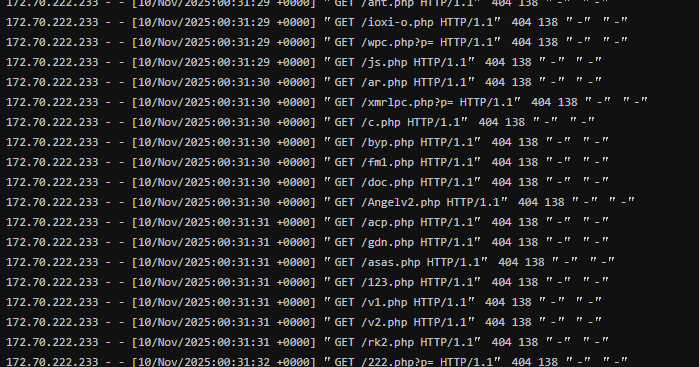
While these requests return 404 errors, on a low-spec VPS, every request and error process consumes CPU, memory, and I/O resources. The sheer volume can instantly overwhelm server performance, making the site inaccessible to real users.
The Dangers of These Scanning Activities:
- Server Resource Depletion (DDoS-like): This is a low-intensity resource attack. It consumes resources that should be dedicated to serving real visitors, directly causing the CPU to surge to 100%.
- Vulnerability Probing: Scanning scripts aim to “fingerprint” your site by testing common paths. If they find an exploitable weakness (e.g., an outdated plugin/theme vulnerability), they will launch deeper attacks like SQL injection or file uploads.
- Log Pollution: Mountains of 404 error logs obscure normal access records, making troubleshooting and security analysis extremely difficult.
The Core Solution: Cloudflare WAF, Intercepting at the Edge
If you are already utilizing Cloudflare (the free plan includes this feature), the solution lies in leveraging its WAF Custom Rules.
The Cloudflare WAF executes rules at the network edge, right between the visitor and your origin server.
- Execution: When a request triggers your rule as malicious, Cloudflare immediately returns a block page (e.g., a 403 error or a custom challenge).
- Result: The request never reaches your VPS server.
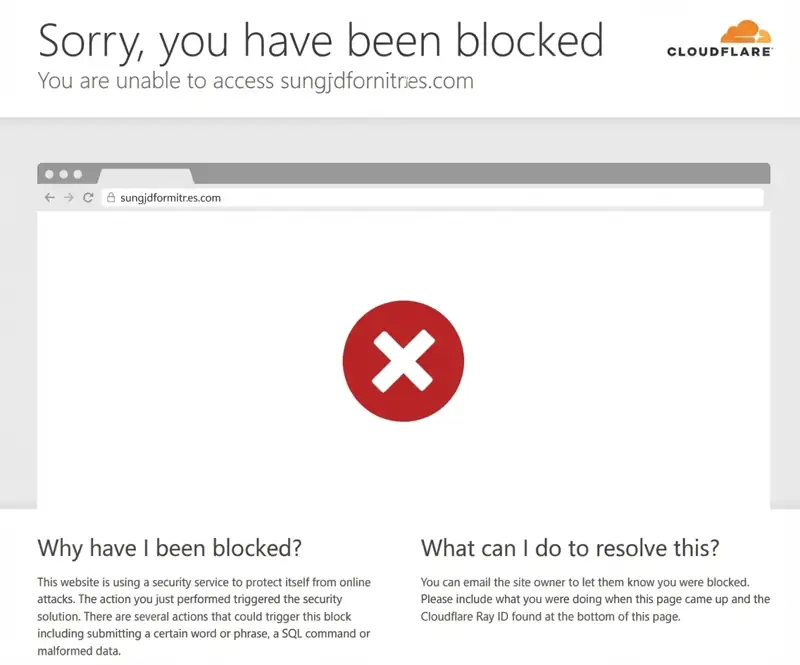
This fundamentally eliminates server resource consumption, allowing your VPS to focus solely on serving legitimate traffic.
Hands-On Tutorial: Creating the Custom Security Rule
This entire process takes less than 5 minutes and requires no server configuration.
Step 1: Access the WAF Custom Rules Page
- Log in to your Cloudflare Dashboard (dash.cloudflare.com) and select the domain you wish to protect.
- In the left sidebar, navigate to Security > Security rules.
- Select the Custom Rules tab.
- Click Create Rule to enter the configuration interface.
Step 2: Configure the Rule Name, Expression, and Action (The Key Step)
The goal is to block all requests for PHP files while excluding legitimate core WordPress paths.
Rule Name: Enter a clear name, e.g., “Block Malicious WP PHP Scans.”
Rule Expression (The Code): Click “Edit Expression” and paste the following Cloudflare Expression Language code:
(http.request.uri.path contains ".php" and not http.request.uri.path contains "/wp-admin/" and not http.request.uri.path contains "/wp-includes/" and not http.request.uri.path contains "/wp-content/" and not http.request.uri.path contains "/index.php" and not http.request.uri.path contains "/wp-login.php" and not http.request.uri.path contains "/wp-cron.php" and not http.request.uri.path contains "/xmlrpc.php")Then take action: Under “Then take action…”, select “Block”.
(Optional: You can choose “Managed Challenge” or “JS Challenge” to require CAPTCHA/browser verification instead of a hard block.)
Deploy: Click the “Deploy” button. The rule is now live!
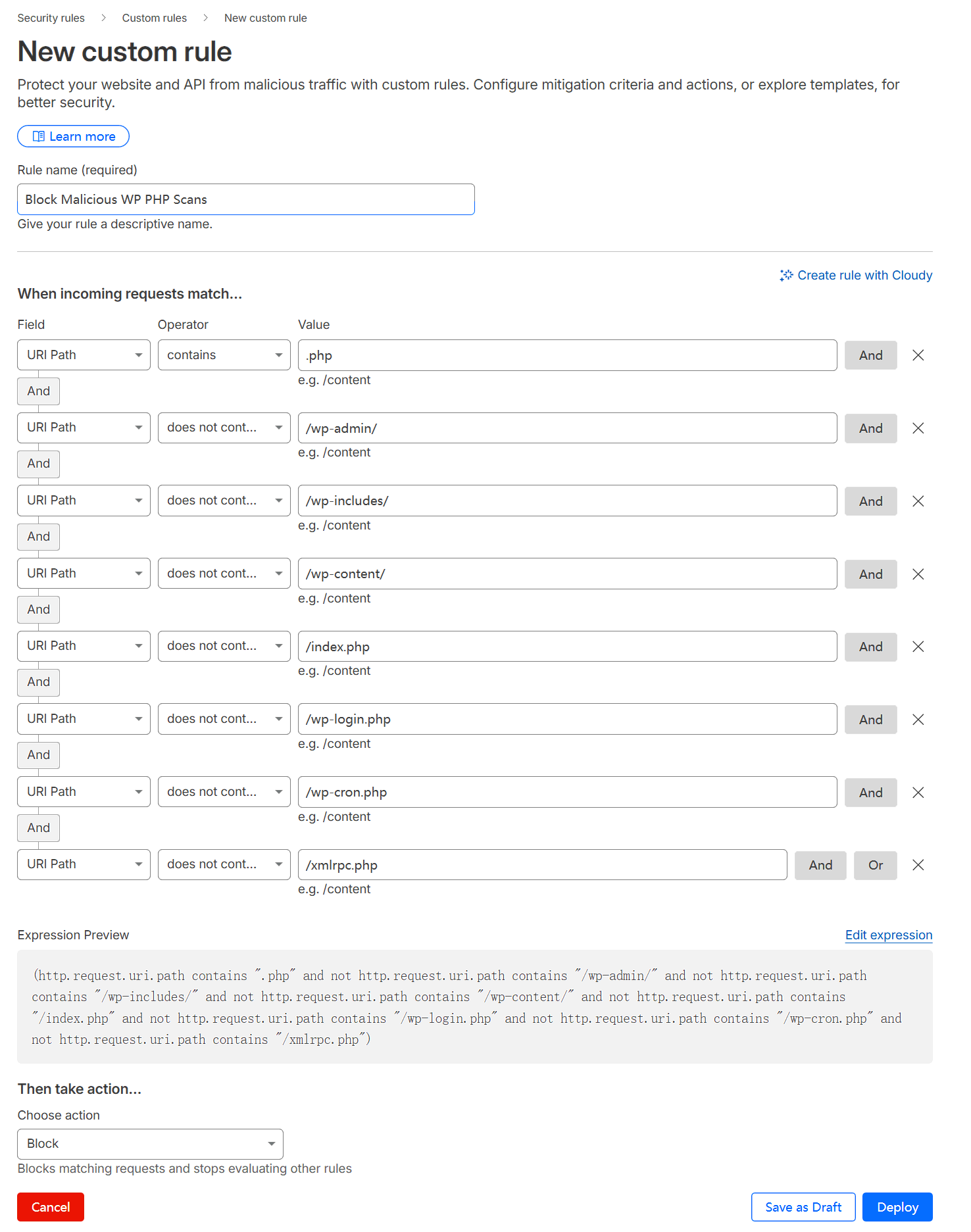
The meaning of this rule is:
http.request.uri.path contains ".php": Matches all requests where the path contains.php.not http.request.uri.path contains "/wp-admin/"etc.: Excludes the legitimate PHP files and directory paths required for WordPress to function properly. This is a crucial step to ensure normal access is not mistakenly blocked./wp-admin/: WordPress admin dashboard directory./wp-includes/: WordPress core functions library directory./wp-content/: Directory for themes, plugins, and uploaded files./index.php,/wp-login.php,/wp-cron.php,/xmlrpc.php: Core WordPress files.
In simple terms, this rule means: “Block all requests attempting to access PHP files, except for the legitimate PHP files that WordPress itself needs to operate.”
Advanced Configuration Tips:
- Custom PHP Files: If you have custom PHP files (e.g., a theme file like
/my-custom-api.php), you must add them to the exclusion list:...or http.request.uri.path in {"/index.php" "/my-custom-api.php"} - Rule Priority: Ensure this rule is prioritized higher than any general “Allow” rules (drag it toward the top of the list).
Verification: Ensuring Zero False Positives
After deploying, perform these checks to ensure the rule works without disrupting normal traffic:
- Legitimate Access Test: Browse your homepage, articles, and log into the WordPress dashboard. Confirm everything loads normally.
- Illegal Request Test: Manually try to access a non-existent PHP path, e.g., .
yoursite.com/fake-script-123.php- Success: Your browser should display the Cloudflare block page (e.g., 403 error), not your server’s 404 page.
- Server Log Check: Observe your VPS logs (Nginx/Apache) to confirm that the excessive PHP scanning requests have vanished and the CPU load remains stable.
A Free Shield for a Stable Website!
By deploying this simple Custom Rule in the Cloudflare edge network, you have successfully built a robust defense against common WordPress PHP scanning.
- Zero Resource Drain: Malicious traffic is handled by Cloudflare, significantly reducing your server load.
- Enhanced Security: You reduce the attack surface by blocking reconnaissance attempts.
- Completely Free: You utilize powerful WAF functionality available in the Cloudflare free tier.
If you are a beginner, always back up your site before making security changes. Have questions or need debugging help? Leave a comment below!