For any WordPress website, especially a multi-author blog, a membership site, or a WooCommerce store, effective user management is the bedrock of a secure and organized operation. Understanding how to leverage the built-in WordPress user roles and permissions system is an essential skill for every website administrator.
This in-depth guide will walk you through the user management features in the WordPress dashboard. We will break down the five default user roles, from Administrator to Subscriber, detail their specific permissions, and show you how to add, edit, and manage your users. We’ll also introduce how plugins can enable advanced permission control, bolstering your WordPress website security.
1. User Roles and Their Permissions
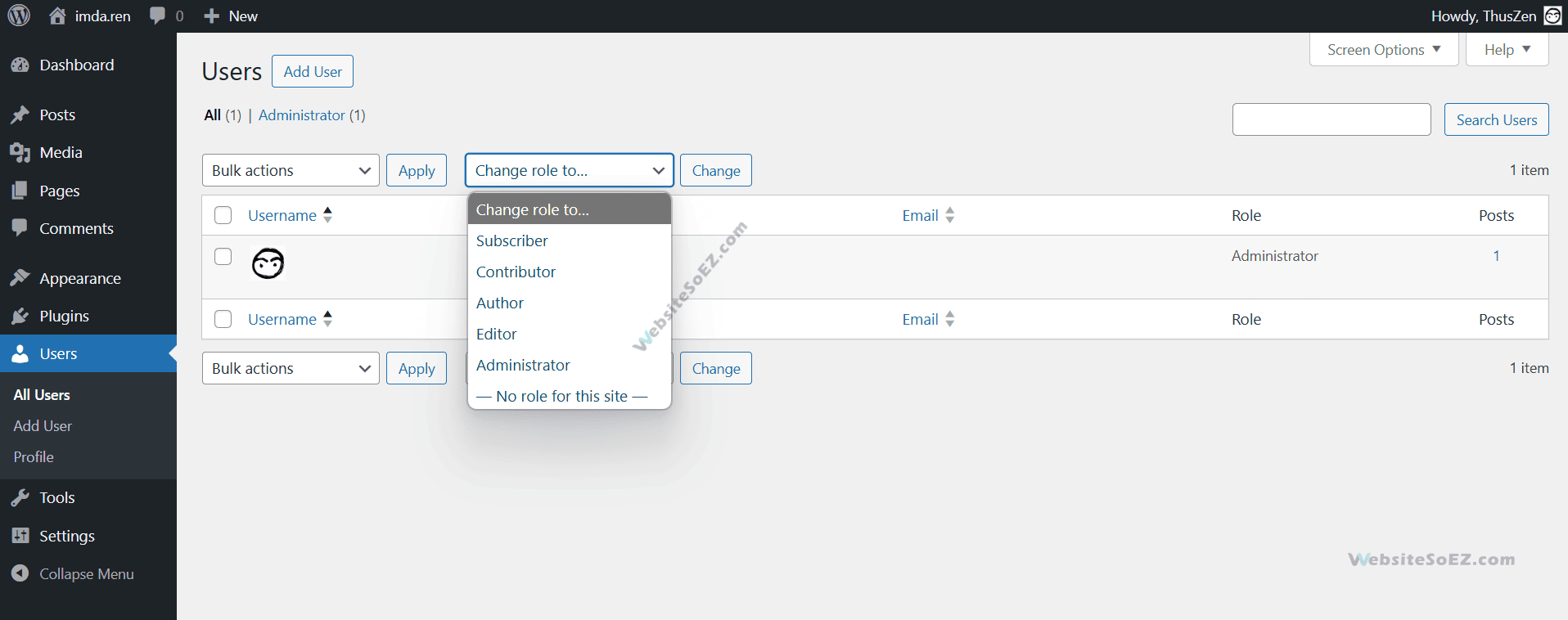
WordPress uses a role-based access control system to determine what a user can and cannot do on your website. When you assign a user a Role, you are granting them a predefined set of Capabilities. Understanding the boundaries of each role is critical for delegating tasks appropriately and preventing costly mistakes.
Here are the five default WordPress user roles, ordered from the highest level of permission to the lowest:
1.1 Administrator
The Administrator is the most powerful role in WordPress, effectively the “super user” of the site.
- Core Permissions: Has complete and total control over every aspect of the website.
- Key Capabilities:
- Install, activate, update, and delete WordPress plugins and themes.
- Add, edit, and delete all users, including other administrators.
- Modify core WordPress settings, such as the site URL and permalink structure.
- Has full control over all posts, pages, comments, and taxonomies.
- Can export and import site data.
- Security Warning: Due to its unlimited power, the Administrator account should be assigned with extreme care and only to the most trusted individuals. A compromised administrator account means the entire website is compromised, making it the single greatest threat to WordPress security.
1.2 Editor
The Editor is the content manager of the site. They have full control over all content but cannot manage site-level settings. This role is perfect for a head of content or a chief editor on a team blog.
- Core Permissions: Manage all of the site’s content, regardless of the author.
- Key Capabilities:
- Create, publish, edit, and delete posts and pages written by any user.
- Moderate, edit, and delete all comments.
- Manage categories and tags.
- Limitations: Cannot install plugins, change themes, manage users, or modify website settings.
1.3 Author
The Author role is designed for content creators and is the most common role on a multi-author blog.
- Core Permissions: Manage their own posts.
- Key Capabilities:
- Create, publish, edit, and delete their own posts.
- Upload media files (images, videos) to their own content.
- View pending comments but cannot moderate them.
- Limitations: Cannot create or edit Pages and cannot modify posts written by other users.
1.4 Contributor
The Contributor is a junior content creator who can write but not publish articles. This role is ideal for guest posters or new team members.
- Core Permissions: Write and edit their own posts, but they must be approved by a higher role.
- Key Capabilities:
- Create and edit their own posts, which must be “Submitted for Review” upon completion.
- Once a post is published by an Editor or Administrator, the Contributor can no longer edit it.
- Limitations: Cannot publish posts and, crucially, cannot upload media files. This is an important security feature that prevents lower-permission users from uploading potentially malicious files to the server.
1.5 Subscriber
The Subscriber role has the fewest permissions. It’s typically used for sites that require users to log in to read content or leave comments.
- Core Permissions: Manage their own profile.
- Key Capabilities:
- Log in to the WordPress backend.
- Read posts and add comments (if required by site settings).
- Update their own profile information, like their name and password.
- Limitations: Has virtually no content creation or site management capabilities within the dashboard.
2. Adding, Editing, and Deleting Users
Managing user accounts in WordPress is a simple and intuitive process.
- From your WordPress dashboard, navigate to “Users” -> “All Users”. This screen lists all user accounts on your site.
- To Add a New User: Click the “Add User“ button at the top. You will need to fill out a username (required), email (required), name, and website, and set a strong password. Most importantly, assign them the appropriate User Role from the dropdown menu at the bottom.
- To Edit a User: In the user list, hover over a username and click the “Edit” link. Here you can change their role, personal information, password, and more.
- To Delete a User: Hover over a username and click the red “Delete” link. When deleting a user, WordPress will ask what to do with the content they have created. You can choose to:
- Delete all content: This will permanently erase all posts created by that user.
- Attribute all content to: This reassigns their posts to another user (such as an administrator). This is the recommended and safer option to prevent accidental content loss.
3. Personal Profile Settings
Every registered user can manage their own profile. By navigating to the “Profile” section in the left-hand menu, a user can:
- Customize the Admin Interface: Change the admin color scheme.
- Set Name and Nickname: Fill in first and last names and choose a Nickname to be displayed publicly. For security, it’s best practice not to use the login username as the public-facing nickname.
- Update Contact Info: Such as the primary email address.
- Write a Biographical Info: This bio can be displayed by some themes at the end of an author’s posts, which is great for showcasing their expertise.
- Set a New Password: Regularly updating passwords is a fundamental website security practice.
4. Advanced User Role Management with Plugins
While the default WordPress roles cover most scenarios, you may need more granular permission control. For instance, you might want to allow Authors to edit Pages, or create a new “Moderator” role that can only manage comments. Plugins can extend WordPress’s native user management features. Here are some top picks:
- Members: Customize permissions and create new roles for precise control.
- WP User Manager: Build user directories and custom login pages for community sites.
- LoginWP: Redirect users based on roles after login/logout, enhancing navigation.
- Two Factor: Add two-factor authentication to protect high-level accounts.
These tools make user management more flexible, secure, and user-friendly.
- Recommended Plugin: User Role Editor is one of the most popular and powerful free plugins in this category.
- Core Features:
- Edit Existing Roles: Add or remove specific capabilities from default roles like Author or Editor.
- Create New Roles: Build a new user role from scratch, assigning the exact permissions needed.
- Clone a Role: Duplicate an existing role and modify it.
- Delete Roles: Remove custom roles you no longer need.
By using such a plugin, you can elevate your WordPress user management to a new level, tailoring permissions precisely to your team’s workflow while maximizing site security and stability.
5. Best Practices for WordPress User Management
Keep your site running smoothly with these tips:
- Audit Regularly: Remove inactive users to minimize security risks.
- Limit Privileges: Assign the lowest role necessary for each user’s tasks.
- Strengthen Security: Enforce strong passwords and use plugins like Two Factor.
- Backup Data: Use a plugin like UpdraftPlus to safeguard user information.
Effective WordPress user management is a cornerstone of running a secure and well-organized website. By thoroughly understanding the permission differences between the Administrator, Editor, Author, Contributor, and Subscriber roles and mastering the dashboard controls for managing users, you can assign responsibilities with confidence. When default roles aren’t enough, leveraging a plugin like User Role Editor for custom permission control provides the ultimate flexibility and security for your growing website.