WordPress comments can be a double-edged sword, and personally, I believe their drawbacks often outweigh the benefits.
Benefits of WordPress Comments: Comments allow visitors to engage with your site, ask questions, and let you respond directly, boosting interaction. They provide valuable feedback, enrich your content, and can even inspire ideas for new posts.
Drawbacks of WordPress Comments: Comments can scare away readers if they contain outdated or negative content. Managing comments consumes a lot of time and effort. The most frustrating issue: spam bots frequently target comment sections, posting unwanted links and advertisements, which clutters your site and slows it down by consuming PHP memory.
In this guide, I’ll show you how to disable WordPress comments completely, including:
- Disabling comments via WordPress settings.
- Turning off comments for individual posts or pages.
- Bulk disabling comments across your site.
- Using plugins to remove comments.
- Using PHP code to permanently close the comment section.
Whether you want to turn off comments in WordPress, remove spam comments, or disable WordPress comments site-wide, this guide will walk you through every method step by step.
1. Disable Comments Using WordPress Settings
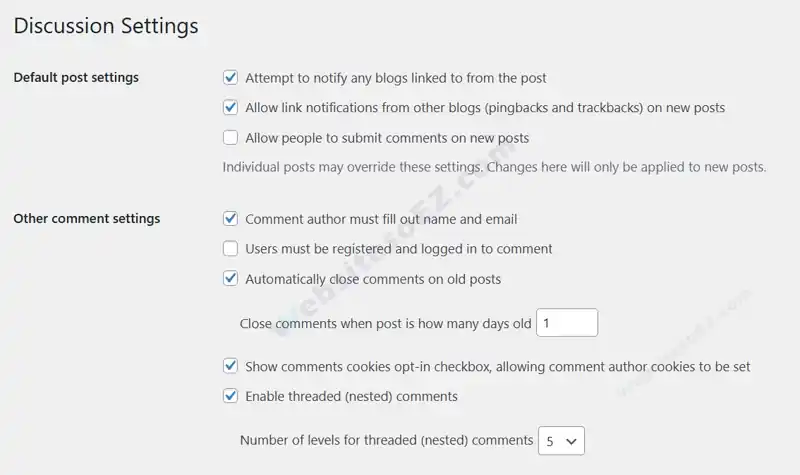
WordPress provides several options to selectively disable comments. Go to Settings > Discussion, find Default Post Settings, and uncheck “Allow people to post comments on new articles”. Then save your changes. This will completely disable comments for all future posts, which is ideal for newly created websites.
To disable comments on existing posts, go to Other Comment Settings and check “Automatically close comments on articles older than”, then set the number of days (e.g., 1 day). This will effectively close comments on all previously published posts.
2. Disable Comments on Individual Posts or Pages
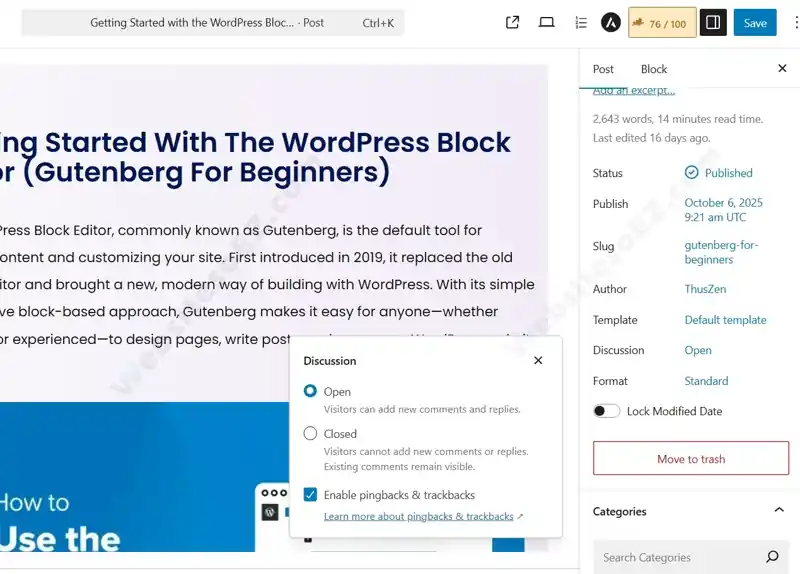
If you notice that some parts of your website still have comments enabled, you can disable comments by editing individual WordPress posts or pages. For example, when editing a post, locate the Discussion section in the sidebar, click on it, and select Comments Disabled. This allows you to precisely control which posts or pages display comments.
3. Bulk Disable Comments
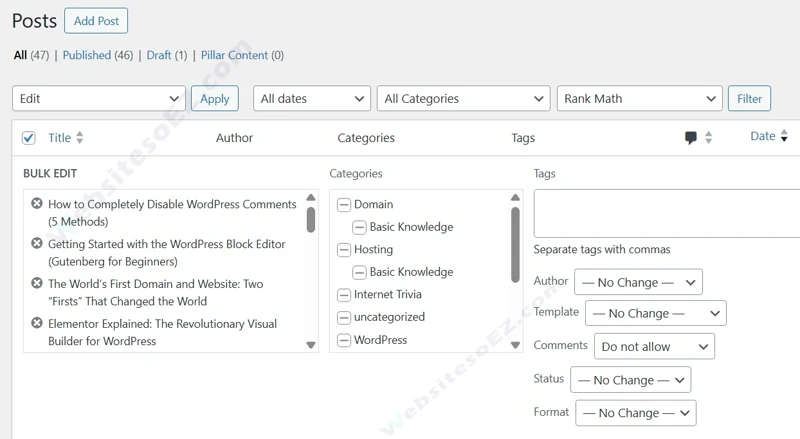
If disabling comments on individual posts or pages feels too tedious, you can use the bulk disable method. Go to your WordPress dashboard > Posts or Pages list, select the checkboxes next to the titles, click Edit > Apply, set Comments to Do not allow, and then click Update.
4. Disable Comments Using a Plugin
If you want to quickly disable comments, using a plugin is the easiest method. Here, we’ll use Disable Comments, a plugin with over a million installs and nearly all five-star ratings. It allows you to enable or disable comments across any content on your WordPress site.
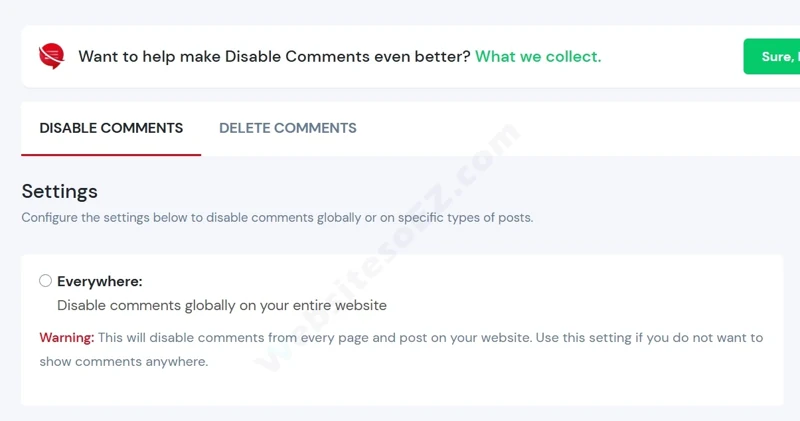
Go to your WordPress dashboard, install the Disable Comments plugin, and activate it. Then, navigate to Settings > Disable Comments in the left-hand menu. Select Everywhere to globally disable all comments on your WordPress site, including posts, pages, and RSS feeds.
5. Disable Comments via functions.php
Alternatively, you can disable WordPress comments by adding custom code to your theme’s functions.php file. However, this method carries a higher risk and is not recommended for beginners, as any coding mistake could cause site errors. If you decide to use this approach, make sure to back up your website before making any changes.
You can add the code directly to your theme’s functions.php file or in a child theme. Use FTP or your hosting file manager to navigate to the following path:/wp-content/themes/your-theme/
Then open the functions.php file and add the following code at the bottom of the file.
add_action('admin_init', function () {
    // Redirect any user trying to access comments page
    global $pagenow;
    if ($pagenow === 'edit-comments.php') {
        wp_safe_redirect(admin_url());
        exit;
    }
    // Remove comments metabox from dashboard
    remove_meta_box('dashboard_recent_comments', 'dashboard', 'normal');
    // Disable support for comments and trackbacks in post types
    foreach (get_post_types() as $post_type) {
        if (post_type_supports($post_type, 'comments')) {
            remove_post_type_support($post_type, 'comments');
            remove_post_type_support($post_type, 'trackbacks');
        }
    }
});

// Close comments on the front-end
add_filter('comments_open', '__return_false', 20, 2);
add_filter('pings_open', '__return_false', 20, 2);

// Hide existing comments
add_filter('comments_array', '__return_empty_array', 10, 2);

// Remove comments page in menu
add_action('admin_menu', function () {
    remove_menu_page('edit-comments.php');
});

// Remove comments links from admin bar
add_action('init', function () {
    if (is_admin_bar_showing()) {
        remove_action('admin_bar_menu', 'wp_admin_bar_comments_menu', 60);
    }
});
We’ve shared several methods to disable WordPress comments, and we hope this guide helps anyone looking to turn off the comment feature.
Disabling comments not only prevents spam but can also improve your website’s overall performance.
Additionally, for business or international trade websites, keeping the comment section enabled may make your site appear less professional and distract visitors from your main content. To maintain a clean and credible image, disabling comments is definitely a smart choice.